
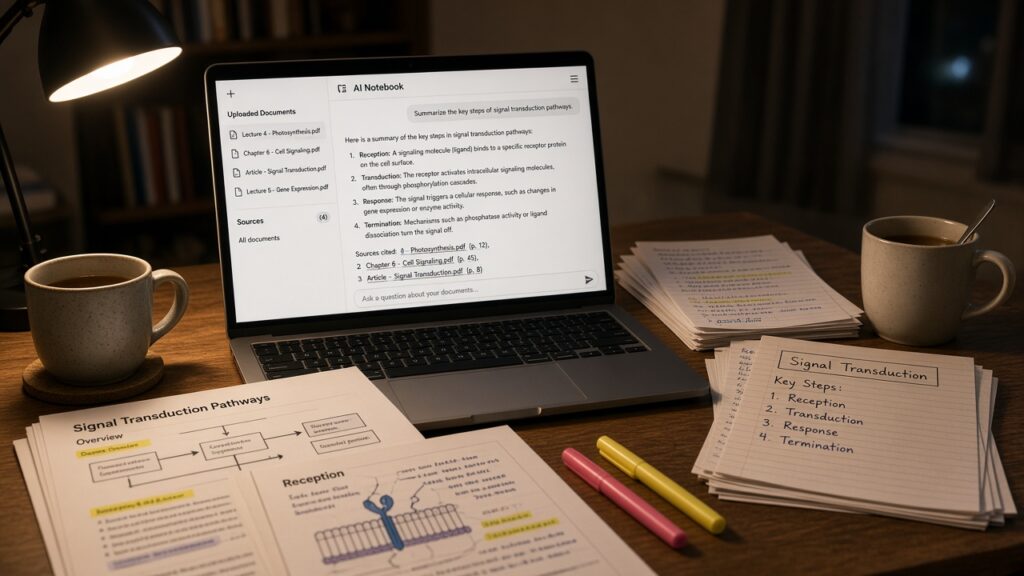

Gemini Notebook, the Google tool most people still know as NotebookLM, is a free AI study assistant that only works from the material you give it. You upload your lecture slides, reading-list PDFs, class notes or a YouTube lecture, then ask it questions. It answers with numbered citations that jump straight to the passage it used. It can also turn the same material into a study guide, flashcards, a practice quiz, a mind map or a podcast-style audio summary.
First, the name. On 16 July 2026 Google renamed NotebookLM to Gemini Notebook (Google’s announcement). It’s the same standalone product at a new address, notebook.google.com, and Google says old NotebookLM links redirect automatically (Workspace Updates). You’ll see both names for a while, so we use both here.
Below: how to set it up for one subject, a simple routine to follow before an exam, and the limits worth knowing before you trust it.

What Gemini Notebook (NotebookLM) is good for, and what it isn’t
Most AI chatbots answer from what they learned in training, plus a web search if they have one. Gemini Notebook works the other way round. Google says it gives “grounded information based on your sources with clear in-line citations” (Google Help). In other words, it’s built to answer from your material rather than from the wider internet.
That makes it a good fit for studying, where the question is rarely “what does the internet think?” and usually “what did my course actually say?” It’s useful for:
- revising a module from slides and notes you already have
- getting to grips with a long reading before a seminar
- testing yourself with quizzes and flashcards built from your own syllabus
- spotting how topics connect across several weeks of material.
It’s less useful when you don’t have good sources yet, or when you want it to do the thinking for you. It’s a study aid, not a shortcut past learning the material.
How to use Gemini Notebook for studying, step by step
1. Sign in and create a notebook for one subject
Go to notebook.google.com and sign in with your Google account. Select Create new notebook and name it after the subject or module, such as “Biology: cell structure” or “Contract law, term 1” (Google Help).
One notebook per subject matters. Each notebook is separate, and keeping one focused means answers come from the right material.
With a school or work account, your organisation’s admin has to switch access on. Personal accounts need to be above the age of consent in your country, while Workspace for Education accounts can be used at any age, with some features limited to over-18s (Google Help).
2. Add your sources
In the pop-up that appears, select Upload a source (or Add sources later from the Sources panel). Google’s help page lists a wide range of formats (Google Help), including:
- PDFs, Word documents, text and Markdown files, and PowerPoint files
- Google Docs, Slides and Sheets
- web page links (only the page text is imported)
- public YouTube videos with captions (it imports the transcript)
- audio recordings, which it transcribes, and images
- text you paste in.
Start with what your course expects you to know: lecture slides, set readings, your own notes and the specification or module guide. Google Drive files can stay synced with the original, so if you keep adding to a Google Doc of notes, the notebook can pick up the changes.
Only upload material you have the right to use. Google’s help page says to “avoid uploading documents you don’t have rights to”.
3. Check what it has understood
Once your sources are in, the chat panel shows a generated summary of everything you added, and each source has its own summary too. Read these first. If a summary misses the main point of a reading, the source may not have imported cleanly, and it’s better to find that out now than the night before the exam.
4. Ask questions, then click the citations
Now treat it like a tutor who has read everything you uploaded. Good study questions are specific:
- “Explain the difference between mitosis and meiosis using only my lecture slides.”
- “What are the three main criticisms of this theory in the week 4 reading?”
- “Which topics come up in more than one lecture?”
You can also tick or untick sources in the Sources panel to limit which ones it uses for an answer.
Every answer comes with numbered citations. Click them. It takes seconds and shows you the exact passage behind each point. That one habit is what turns an AI notebook from a confident-sounding chatbot into something you can rely on for revision.
5. Make a study guide
In the Studio panel, choose Reports, then pick Study guide (other formats include FAQ and briefing document). Reports can be exported to Google Docs from the three-dot menu, which is handy if you want to annotate them (Google Help).
A study guide is a starting point, not the finished product. Read it alongside your notes and add anything your lecturer stressed that the summary skipped.
6. Test yourself with flashcards and quizzes
This is the most useful part for revision. In Studio, choose Flashcards or Quizzes, or select the pencil icon first to customise them, for example by number, difficulty or topic focus (Google Help).
You can mark each flashcard “Got it!” or “Missed it!”, and it remembers your progress. At the end you see your results and can review or retake. Both tools have an Explain button that tells you why an answer is right, and flashcards can be downloaded as a CSV file if you prefer another flashcard app.
Why put the most time here? Testing yourself is one of the best-supported study techniques in learning research. A large 2013 review of ten common study methods rated practice testing as one of only two “high utility” techniques, alongside spreading your study out over time (Dunlosky et al., 2013).
7. Listen, map and connect
Two more Studio tools are worth trying:
- Audio Overview turns your sources into a spoken summary. The default “Deep Dive” is a conversation between two AI hosts, “The Brief” is a single speaker in under two minutes, and “The Critique” and “The Debate” suit essays and arguments. It’s good for revising on a walk, but Google warns that Audio Overviews “may contain inaccuracies” (Google Help).
- Mind Map draws your sources as a branching diagram. Select a branch to ask about that topic in chat. It’s a quick way to see how a module fits together. It isn’t available in the mobile app yet (Google Help).
8. Save what you learn
When an answer is useful, save it as a note in your notebook so you can find it later. Before an exam, ask the chat to pull your saved notes into a one-page summary, then check that against your sources too.
The limits worth knowing
- It can be wrong. Google says Gemini Notebook “can make mistakes”. Citations make checking quick, but you still have to look.
- It only knows what you give it. If your notes are incomplete or wrong, so are its answers.
- Not everything imports. Footnotes and comments in Google files are left out, and web links bring in the page text only.
- There are usage limits. The free plan allows up to 100 notebooks and 50 sources per notebook, and Google says limits are subject to change. Paid Google AI plans raise them (Google Help).
- Some features are web-only or over-18 only, and the mobile app doesn’t have everything.
- Check your course rules. Many schools and universities have policies on AI use. Using it to revise is usually very different from using it to write assessed work, but check what yours allows.
On privacy, Google says your data isn’t used to train Gemini Notebook unless you send feedback (Google Help). If you want to tighten privacy across your other AI tools, our guide to AI chat privacy settings walks through ChatGPT, Gemini, Claude and Copilot.
Frequently asked questions
Is NotebookLM the same as Gemini Notebook?
Yes. Google renamed NotebookLM to Gemini Notebook on 16 July 2026. It’s the same standalone product, and Google says existing notebooks and links keep working.
Is Gemini Notebook free?
Yes. You can use it free with a personal Google account. Paid Google AI plans add higher limits, such as more notebooks and more sources per notebook.
Can it make flashcards for Anki?
It makes its own flashcards and lets you download them as a CSV file, which many flashcard apps can import. Check the columns before you import.
Can I use it on my phone?
There’s a mobile app, but Google notes it doesn’t support every feature. Mind Maps, for example, are web-only for now.
Where to start tonight
Pick one subject you’re revising now. Create a notebook, add your slides and notes, read the summaries, then ask three questions and click every citation. Finish with a 10-question quiz. If the answers hold up against your notes, you have a routine you can repeat for every module.
If you’re weighing it against other assistants, our guides to the top AI platforms in 2026 and Google’s AI tools in 2026 show where it fits. For the rest of your study system, see how to use Google Keep to stay organised and our pick of the best AI tools by task. If you work in education, Bett UK 2027 in London in January is one of the events on our tech events calendar where you can see AI study tools in action.
Written by The AIDailyShift Team. Facts checked against the official sources linked above on 15 November 2026.
Image credit: featured image is an illustrative AI-generated image created for AIDailyShift.
