
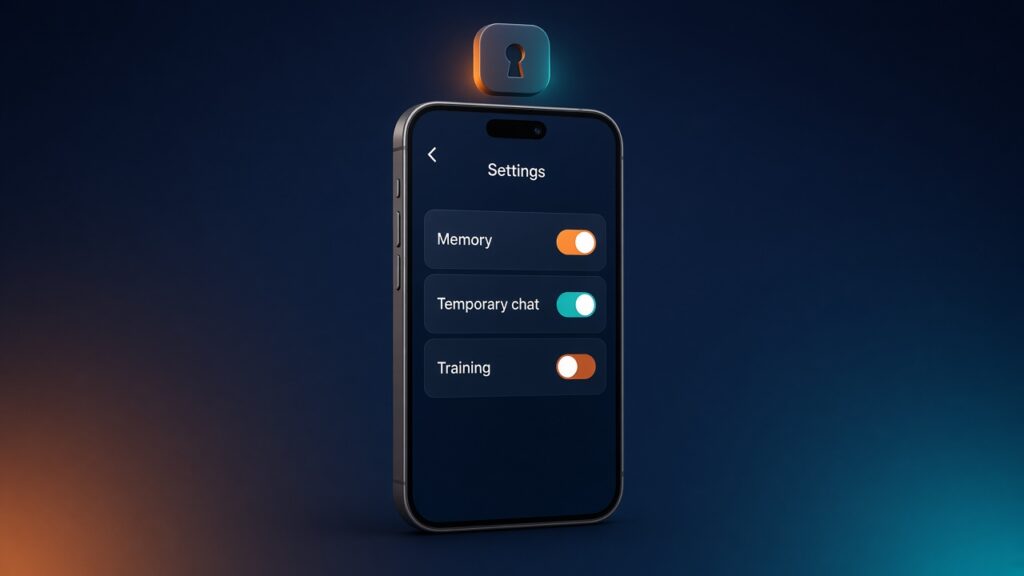

Every major AI chatbot gives you three separate privacy controls, and most people only know about one. Memory decides what the assistant remembers about you between chats. Temporary (or incognito) chats keep a single conversation out of your history. Training settings decide whether your conversations can be used to improve the company’s AI models.
They’re separate switches. Turning off memory doesn’t stop training, and turning off training doesn’t delete your chats. Below we show where each switch lives in ChatGPT, Gemini, Claude and Microsoft Copilot, what it actually does, and the catches buried in the small print.
These settings change often. We checked every step against each company’s official help pages on 15 November 2026, and they apply to personal accounts. Work and school accounts usually follow your organisation’s rules instead. Menu names can also vary by plan, region and app.

At a glance: where the settings are
| Memory | Temporary chat | Training opt-out | |
|---|---|---|---|
| ChatGPT | Settings → Personalization → Memory | New chat → Temporary | Settings → Data controls → “Improve the model for everyone” |
| Gemini | Settings → Personal Intelligence → Memory | “Temporary chat” next to New chat | Settings → Activity → turn off Keep Activity |
| Claude | Settings → Your Claude → “Generate memory from chats” | Ghost icon on a new chat | Settings → Privacy → “Help improve our AI models” |
| Copilot (new app) | Settings → Personalization → Saved memories | Not described for personal accounts* | No switch: Microsoft says prompts aren’t used to train foundation models |
*See the Copilot section below.
How to make your AI chats more private: six steps
- Ask it what it knows. Type “What do you know about me?” OpenAI’s help page suggests this for ChatGPT, and it’s a quick reality check in any assistant with memory.
- Review or switch off memory in the settings listed above, and delete anything you don’t want kept.
- Switch off training if you don’t want your chats used to improve the models.
- Use a temporary chat for one-off sensitive questions, such as a health worry or a money problem.
- Delete old chats you no longer need. In ChatGPT, deleting a chat doesn’t necessarily delete a memory created from it, so remove both.
- Be careful with feedback buttons. Rating a reply can share the whole conversation, whatever your other settings say.
Here’s what each company’s settings actually do.
ChatGPT
Memory. Go to Settings → Personalization → Memory. Depending on your plan and region, you may see “Reference saved memories”, “Reference chat history” and a memory summary you can correct. OpenAI says turning memory off doesn’t delete past chats, and that deleting a chat “does not necessarily delete a separate saved memory created from that chat”, so to remove something fully, delete both the memory and the chat. If you turn off Reference chat history, what it remembered from past chats is scheduled for deletion within 30 days (OpenAI Help).
Temporary Chat. Open a new chat, select Temporary, then choose Personalized or Unpersonalized before your first message. A personalised temporary chat can still use your existing memories and custom instructions; an unpersonalised one doesn’t. Either way, temporary chats stay out of your history, don’t create or update memories and aren’t used to train OpenAI’s models. OpenAI may keep a copy for up to 30 days for safety. If you save a temporary chat, it becomes a normal chat and your usual settings apply (OpenAI Help).
Training. On Free, Plus and Pro accounts, data sharing is on by default. Turn it off in Settings → Data controls → Improve the model for everyone, and you keep your chat history. Voice mode has its own separate control. OpenAI also says that if you give thumbs-up or thumbs-down feedback, “the entire conversation associated with that feedback may be used to train OpenAI models”. Business, Enterprise and Edu workspaces aren’t used for training by default (OpenAI Help).
Google Gemini
Gemini works differently: one setting, Keep Activity, controls both your saved history and whether your chats help improve Google’s AI.
Training and history. When Keep Activity is on, Google says it uses your activity to “provide, develop, and improve its services (including training generative AI models)”, with help from human reviewers. Chats that reviewers have looked at are disconnected from your account and kept for up to three years, even if you delete your activity (Gemini Apps Privacy Hub). To opt out, go to gemini.google.com, open Settings → Activity and select Turn off (or Turn off and delete activity) (Google Help).
The catch: with Keep Activity off, your future chats aren’t saved to your history, and some features that depend on it stop working. Google still keeps chats for 72 hours to respond to you and keep the service safe. If you leave it on, your activity auto-deletes after 18 months by default, and you can change that to 3 months, 36 months or never.
Memory. Gemini’s memory of past chats is under Settings → Personal Intelligence → Memory. It needs a personal Google account, age 18 or over, and Keep Activity switched on (Google Help).
Temporary chats. Select Temporary chat next to New chat. These don’t appear in your activity or recent chats, and Google keeps them with your account for 72 hours. You need to be signed in with a personal account to use them (Google Help).
Claude
Memory. Find it in Settings → Your Claude (or Settings → Memory in the older layout) and the Generate memory from chats toggle. Switching it off gives you two choices: Pause memory, which keeps what’s saved but stops using it or adding to it, or reset, which deletes it. Sensitive topics have their own setting. The same page has a separate toggle for Search and reference chats (Claude Help).
Incognito chats. Start a new chat outside a project and click the ghost icon in the top-right corner. Incognito chats aren’t saved to your chat history or memory, but Anthropic still keeps them for 30 days by default (Claude Help).
Training. Go to Settings → Privacy and switch off Help improve our AI models. Anthropic says this stops new chats, and previously stored ones, being used in future training runs, though data already in training that has started, or in models already trained, stays there. Chats flagged by its safety systems may still be used for trust and safety work (Anthropic Privacy Center). Retention is the big difference: with training on, de-identified chats may be kept for up to five years, while a deleted chat is removed from back-end systems within 30 days (Anthropic Privacy Center).
Microsoft Copilot
Copilot is in the middle of a changeover. Microsoft released a new version of the Copilot app on 18 August 2026, and the privacy rules differ between the old and new versions.
New app. Microsoft says prompts, responses and file contents “aren’t used to train foundation models”, so there’s no training switch to find (Microsoft Support). To control memory, open Settings → Personalization. Turn off Saved memories to stop new ones, then select Manage → Delete all memories, because turning the toggle off doesn’t remove what’s already saved (Microsoft Support).
Old app. If you haven’t updated, the older settings apply, including opt-outs for training on your conversations, with history kept for 18 months by default. Microsoft says you need to sign in to the updated app by 31 December 2026 to keep eligible chats, and anything not migrated will be permanently deleted after that date (Microsoft Support).
Temporary chat. We couldn’t confirm one for personal accounts. Microsoft’s help pages describe a temporary chat only for Copilot Chat with a work or school Microsoft 365 account (Microsoft Support), and its consumer privacy pages don’t mention one. If you use a personal account, delete a sensitive chat when you’re done: in the Chats list, select … → Delete.
Frequently asked questions
Does turning off memory stop the AI training on my chats?
No. In all four services, memory and training are separate. Check both settings.
Are temporary or incognito chats completely private?
No. They stay out of your history and memory, but the company keeps a copy for a short time: up to 30 days for ChatGPT and Claude, and 72 hours for Gemini.
If I delete a chat, is it gone?
From your history, yes. Copies may remain for a while in back-end systems, and anything already reviewed or used in training may not be removed. In ChatGPT, delete any related saved memory too.
Are work and school accounts different?
Usually, yes. OpenAI says business and education workspaces aren’t used for training by default, and Gemini’s temporary chats need a personal account. Your organisation’s admin sets many of these rules.
Your five-minute privacy check
Open the AI chat you use most, ask it what it knows about you, then go through the three settings in the table above. It takes about five minutes. After that, use a temporary chat whenever a question feels personal, and keep passwords and bank details out of every chatbot. Settings in this area change often, so it’s worth repeating the check every few months.
For the rest of your accounts, our guides to improving your online security, using Google Password Manager safely and spotting AI scams are good next steps. New to chatbots? Start with our ChatGPT guide or compare the top AI platforms in 2026. Security and privacy shows such as Infosecurity Europe 2027 are listed on our tech events calendar.
Written by The AIDailyShift Team. Facts checked against the official sources linked above on 15 November 2026.
Image credit: featured image is an illustrative AI-generated image created for AIDailyShift.
