

Unboxing a robot vacuum takes a couple of minutes. Getting it to behave can take a week. That’s rarely the robot’s fault. Most problems come from a few small day-one mistakes: a dock squeezed into a corner, a phone on the wrong Wi-Fi band, or a first map made with half the doors shut.
This guide walks through how to set up a robot vacuum from box to first schedule. It works for most brands, including iRobot Roomba, Roborock, Ecovacs Deebot and eufy, and we flag anything that only applies to one of them. It’s written for US readers, with short UK notes where things differ.
Quick answer: robot vacuum setup in 7 steps
- Charge the robot and put the dock flat against a wall with clear space around it.
- Install your brand’s app and connect the robot to Wi-Fi (usually the 2.4 GHz band).
- Clear the floor, open the doors and let it do a full mapping run.
- Split and name the rooms, then add no-go zones.
- Set a cleaning schedule for when the floors are clear.
- On vacuum-and-mop models, fill the tank and add no-mop zones for rugs.
- Link Alexa or Google Home, then keep up with brushes, filters and bags.
Still deciding which robot to get? Start with our Home Robots guide, which covers what’s worth buying now, or read our iRobot Roomba j7 review to see what good obstacle avoidance looks like in practice. Our Top Picks page rounds up the smart home and AI gadgets we rate most highly.

If you want one robot that covers the steps below without fuss, iRobot’s Roomba Max 705 Vac pairs lidar mapping with camera-based obstacle avoidance and a self-emptying dock.
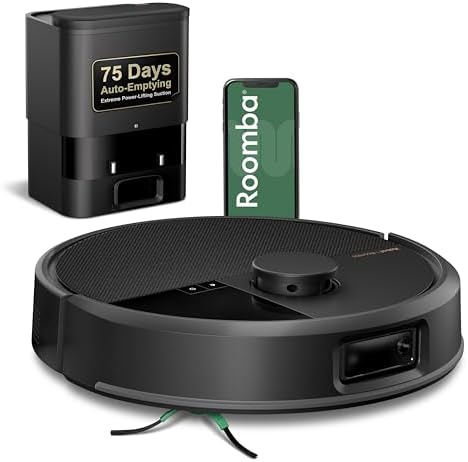
- DUAL BRUSHES, DOUBLE DIRT DESTRUCTION. Patented rubber brushes flex and adjust, staying in constant contact with all flo…
- ELIMINATES DIRT & DUST. Powers through pet hair and more with anti-tangle Dual Rubber Brushes, an Edge-Sweeping Brush, C…
- CLEARVIEW PRO LIDAR. Expertly maps your home for maximum coverage and thorough cleaning, day or night- Plus, specialized…
Before you start: what’s in the box
You’ll find the robot and a dock. The dock might be a simple charger, a self-emptying base, or a bigger station that also washes mop pads. There’s usually a power cord, spare side brushes, and often a spare filter or bag. Combo models add mop pads or a roller mop.
Peel off every bit of protective film and foam, including any tucked under the bumper or inside the bin. Fit the side brushes if they aren’t already on. Then charge the robot fully before its first run.
UK note: Buy the UK version from a UK retailer such as Currys, Argos, John Lewis or Amazon.co.uk, so the dock has a UK plug. Don’t run an imported US model through a travel adapter. Its dock may only be rated for US power, so check the label.
Step 1: Pick the right spot for the dock
If the robot can’t find its dock, nothing else works well. Brands agree on the basics:
- Flat against a wall, on a hard, level floor. Not on a thick rug.
- Clear space around it. iRobot asks for at least 1.5 ft (0.5 m) on each side and 4 ft (1.2 m) in front, with no chairs or tables in that area. Roborock asks for at least 1.6 ft (0.5 m) on each side, 4.9 ft (1.5 m) in front and 3.3 ft (1 m) above.
- Away from stairs. iRobot says at least 4 ft (1.2 m).
- Near an outlet with decent Wi-Fi, and with the cord tucked out of the robot’s path.
A hallway or central room usually beats a cramped corner. If your dock has water tanks, make sure you can reach them without moving furniture. Self-emptying docks also need room above to open the lid and change the bag; iRobot asks for at least 1 ft (0.3 m) clear above the dock’s canister.
Step 2: Install the app and connect to Wi-Fi
Download your brand’s app: Roomba Home (or the iRobot Home Classic app for older Roombas), Roborock, Ecovacs Home or eufy Clean. Create an account and tap the option to add a device. Most apps use Bluetooth and location permission to find the robot, so switch both on. Then:
- Choose your home Wi-Fi network.
- Type the password carefully. One wrong character is the most common reason pairing fails.
- Press the robot’s button to put it into setup mode.
- Wait while it connects and installs any updates.
Which iRobot app? iRobot says its Roomba Home app is for the 100, 200, Plus 400 and Plus 500 series and other robots sold after March 2025; older Roombas use iRobot Home (Classic). If you’ve seen the news that iRobot went through bankruptcy, the short version is that Picea, the company that already built Roombas, took over in January 2026. iRobot says the apps, firmware updates and warranties carry on, and US customer data is handled by a separate US subsidiary (The Verge has the details). The app is still getting regular updates, according to iRobot’s release notes.
Why 2.4 GHz still matters
This is where most setups go wrong. Many robot vacuums only connect to 2.4 GHz Wi-Fi:
- Roborock says its robots currently support 2.4 GHz only, and its product pages still say 5 GHz isn’t supported.
- Ecovacs needs a 2.4 GHz network or a mixed 2.4/5 GHz network.
- eufy says most RoboVacs are 2.4 GHz only. The L60 series is an exception that supports both bands.
- iRobot is more flexible. Several Roombas, including the j7 and the newer Max 700 series, work on both bands. Others, such as the Roomba 100 series, need 2.4 GHz.
If your router shows two network names (say “Home” and “Home_5G”), pick the 2.4 GHz one. If it uses one combined name, try that first. If setup keeps failing, have your phone forget the 5 GHz network until you’re done, and switch off any VPN and mobile data while you pair. Guest networks with “AP isolation” turned on can block setup too.
UK note: iRobot and Ecovacs say robots sold in North America only use Wi-Fi channels 1 to 11, while models sold elsewhere can use 1 to 13. An imported US robot may not see a UK router that’s set to channel 12 or 13.
Step 3: Do the first mapping run
Once the robot is online, the app will offer a mapping run. Room-by-room cleaning, zones and schedules all depend on this map, so it’s worth five minutes of prep:
- Pick up cords, socks, toys and pet bowls.
- Open the doors to every room you want mapped.
- Turn the lights on if your robot uses a camera.
- Push chairs in so it can see each room’s real shape.
Then leave it alone. Don’t pick it up or move the dock mid-run. Some robots finish the map in one go; others need a few runs.
Step 4: Tidy up the map and add no-go zones
This is where mapping starts to pay off:
- Split and name rooms to match real life. “Kitchen” and “Hallway” make voice commands much easier later.
- Add no-go zones around pet bowls, cable tangles and tasselled rugs. The names vary: iRobot calls them Keep Out Zones, while Roborock uses no-go zones and invisible walls.
- Add no-mop zones on combo models, so carpets stay dry.
Go slowly. Watch a few runs, note where the robot struggles, and block those spots. Fencing off half the house on day one just leaves floors uncleaned.
Step 5: Set a cleaning schedule
Most apps let you pick days and times, clean certain rooms on certain days, and set suction and number of passes per room. Start with a time when the floors are clear and nobody’s home. Check the cleaning history after a week or two and adjust.
Step 6: Set up mopping (vacuum-and-mop models)
If you’ve bought a robot vacuum and mop, there are a few extra steps:
- Fill the clean water tank, on the robot or in the dock.
- Use the right liquid. iRobot says plain water is best and publishes a list of approved solutions. Other brands sell their own. Random floor cleaners can damage seals and pumps.
- Set water flow per room. Less on wood, more on tile.
- Check how it handles carpet. Many combos lift their mop pads on carpet. The Roomba Max 705 Combo goes further, with a cover that drops over its roller mop when it detects carpet. Add no-mop zones for any rugs your robot can’t cope with.
- Use “vacuum, then mop” if your app offers it.
Roborock’s Saros 10R is a good example of where combos are heading: it lifts its mop pads on carpet, and its dock washes them with hot water and dries them afterwards. It’s also a 2.4 GHz-only robot, so Step 2 applies.

- 𝟯.𝟭𝟰-𝗜𝗻𝗰𝗵 𝗨𝗹𝘁𝗿𝗮-𝗧𝗵𝗶𝗻 𝗗𝗲𝘀𝗶𝗴𝗻: The Roborock Saros 10R redefines home cleaning with its ultra-slim 3.14-inch profile. Power…
- 𝗦𝘁𝗮𝗿𝗦𝗶𝗴𝗵𝘁 𝗔𝘂𝘁𝗼𝗻𝗼𝗺𝗼𝘂𝘀 𝗦𝘆𝘀𝘁𝗲𝗺 𝟮.𝟬: Experience smarter cleaning with advanced 3D sensing technology, enabling precise mappi…
- 𝗣𝗼𝘄𝗲𝗿𝗳𝘂𝗹 𝗖𝗹𝗲𝗮𝗻𝗶𝗻𝗴 𝗦𝘆𝘀𝘁𝗲𝗺: With 22,000 Pa HyperForce suction, the Roborock Saros 10R effortlessly removes dirt, hair, and…
Step 7: Connect Alexa or Google Home
- iRobot: In the app’s voice assistant settings, choose Alexa or Google Assistant and link your account. Then try “Alexa, ask Roomba to start cleaning.”
- Roborock: Enable the Roborock skill in the Alexa app and link your account. In Google Home, add a device, search for Roborock and sign in.
- Ecovacs and eufy: Same pattern. Enable the brand’s skill, link your account and let the assistant find the robot.
Room commands only work if your rooms have clear names, which is why Step 4 matters. Some newer Roborock and Ecovacs models have added Matter support through firmware updates, which lets them show up in Apple Home and Google Home. Support varies by model, so check yours.
If you’re building out voice control, our guide to which Echo you should buy helps you pick the right speaker for each room, our best smart home devices for 2026 covers what else is worth adding, and our smart home hub guide explains Matter and Thread if you want the robot in Apple Home or Google Home too.
UK note: Alexa and Google Assistant work with the major robot brands in the UK, and setup is the same. Newer features such as Alexa+ are rolling out country by country, so what you see can differ from US guides.
Maintenance: brushes, filters and the self-empty bag
A robot vacuum that’s ignored for three months stops cleaning well. iRobot’s care charts for its i and j series say to clean the filter and brushes once a week (twice a week with pets), replace the filter every two months and the main brushes every 6 to 12 months. Roborock suggests cleaning the main brush and filter every two weeks, replacing them every 6 to 12 months, and replacing side brushes every 3 to 6 months. Intervals vary by model, so check your manual. Most apps also remind you when a part is due.
The rest is quick:
- Cut hair off the brushes before it wraps around the axles.
- Wipe the sensors and charging contacts about once a month. iRobot suggests a clean melamine foam pad for the contacts.
- Change the self-empty bag when the app asks. iRobot says the bag in its Max 705 docks holds up to 75 days of debris, but pets and long hair will shorten that. Some stations, such as Ecovacs’ Deebot X11 OmniCyclone, are bagless and have a bin to empty instead.
- Rinse mop pads and the dirty-water tank on combos, so they don’t start to smell.
Genuine parts are the safest bet for fit. For the Roomba Max 705 Vac, iRobot’s replenishment kit bundles filters, edge brushes and rubber main brushes. Combo owners need iRobot’s separate Combo kit, so check the compatibility list before you order.
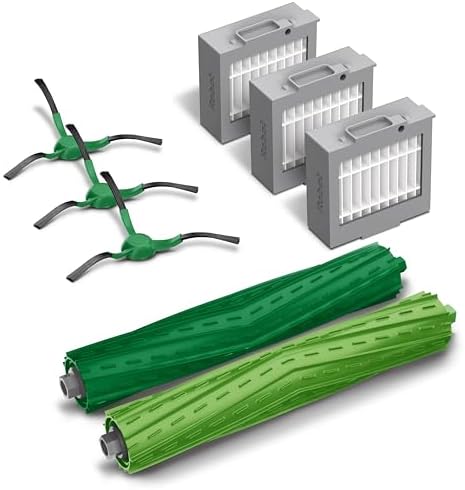
- Everything you need to perform regular maintenance on your Roomba Max 705 Vac Robot + AutoEmpty Dock.
- 3 Filters: The filter attaches to the dustbin to catch particles. A dirty filter weakens your robot’s suction power.
- 3 Edge-Sweeping Brushes: Specially designed at an angle to sweep debris from edges and corners and into the cleaning pat…
iRobot’s dirt disposal bags fit the AutoEmpty and AutoWash docks for the Max 705 Vac and Combo, plus several other current Roombas.

- Dirt Disposal Bags hold up to 75 days of dirt and debris.
- Includes 3 Dirt Disposal Bags
- Compatible with: Roomba 105 Vac Robot + AutoEmpty Dock, Roomba 105 Combo Robot + AutoEmpty Dock, Roomba Plus 405 Combo R…
Troubleshooting common setup problems
Won’t connect to Wi-Fi: Use the 2.4 GHz network, switch off your VPN and retype the password. Roborock also suggests avoiding special characters in the network name or password, and using WPA or WPA2 security rather than WEP. Restart the router and the robot, then try again.
Can’t find the dock: Check the clearance around the dock and make sure it hasn’t moved since mapping. Clean the charging contacts.
Keeps getting stuck: Note where it happens and add a no-go zone. Cords and curled rug edges are the usual culprits.
The map is scrambled: Delete it and do a fresh mapping run with the doors open and the lights on.
Mopping leaves streaks: Turn the water flow down, clean the pads, and stick to water or an approved solution.
Alexa or Google stopped responding: Check the robot is online in its own app, then unlink and relink the skill.
What setting up a robot vacuum tells us about the future of home robots
What stands out every time is that the cleaning is the easy part. The real work is teaching a machine about your home: where the rooms are, what’s off-limits, and when it’s allowed to run. A robot vacuum is really a small mobile robot that maps, avoids obstacles and plans routes around your routine.
Those are the same skills more capable home robots will need. Lidar mapping and camera-based obstacle avoidance are already standard on mid-range vacuums. Matter is starting to let robots work across smart home platforms instead of being locked into one app. Robot lawn mowers, companion robots and, eventually, general-purpose humanoids build on the same foundations.
Most of that is still early. But once you’ve set up a robot vacuum, you already know the basics of living with a home robot: give it space, a solid connection, clear boundaries and a bit of regular care. For what you can buy today and what’s worth waiting for, see our best home robots guide. If you want to see the next wave in person, CES 2027 in Las Vegas is where most robot vacuum brands show their new models each January, and our tech events calendar lists the other robotics and smart home shows worth knowing about.
FAQ
How long does it take to set up a robot vacuum?
Unboxing and connecting to the app usually takes well under an hour. The first mapping run takes longer, depending on the size of your home, and some robots need a few runs to finish the map.
Do robot vacuums work with 5 GHz Wi-Fi?
Many don’t. Roborock, Ecovacs and most eufy robots need 2.4 GHz or a mixed network. Some Roombas, including the j7 and the Max 700 series, support both bands.
Where is the best place to put a robot vacuum dock?
Flat against a wall on a hard, level floor, with clear space on each side and in front, away from stairs and within Wi-Fi range.
Do I need to remap if I move furniture?
Small changes are usually fine. After a big rearrangement or a house move, do a fresh mapping run.
How do I connect my robot vacuum to Alexa?
Enable your brand’s skill in the Alexa app, sign in with your robot app account, and let Alexa discover the robot.
Can I use a US robot vacuum in the UK?
It’s best not to. The dock may only be rated for US power, so check its label. Some brands’ US robots also only use Wi-Fi channels 1 to 11, while UK routers can use 12 and 13.
Does my Roomba still work after iRobot was sold?
Yes. Picea took over iRobot in January 2026, and iRobot says the apps, firmware updates and warranties continue as normal.
Written by The AIDailyShift Team. Facts checked against manufacturer support pages on 14 November 2026.
Image credit: featured image is an illustrative AI-generated image created for AIDailyShift.
As an Amazon Associate, AIDailyShift earns from qualifying purchases.
Disclosure: Some links on this page are affiliate links. If you buy through them, AIDailyShift may earn a small commission at no extra cost to you. We only recommend tools we would use ourselves. Read our Affiliate Disclosure.
